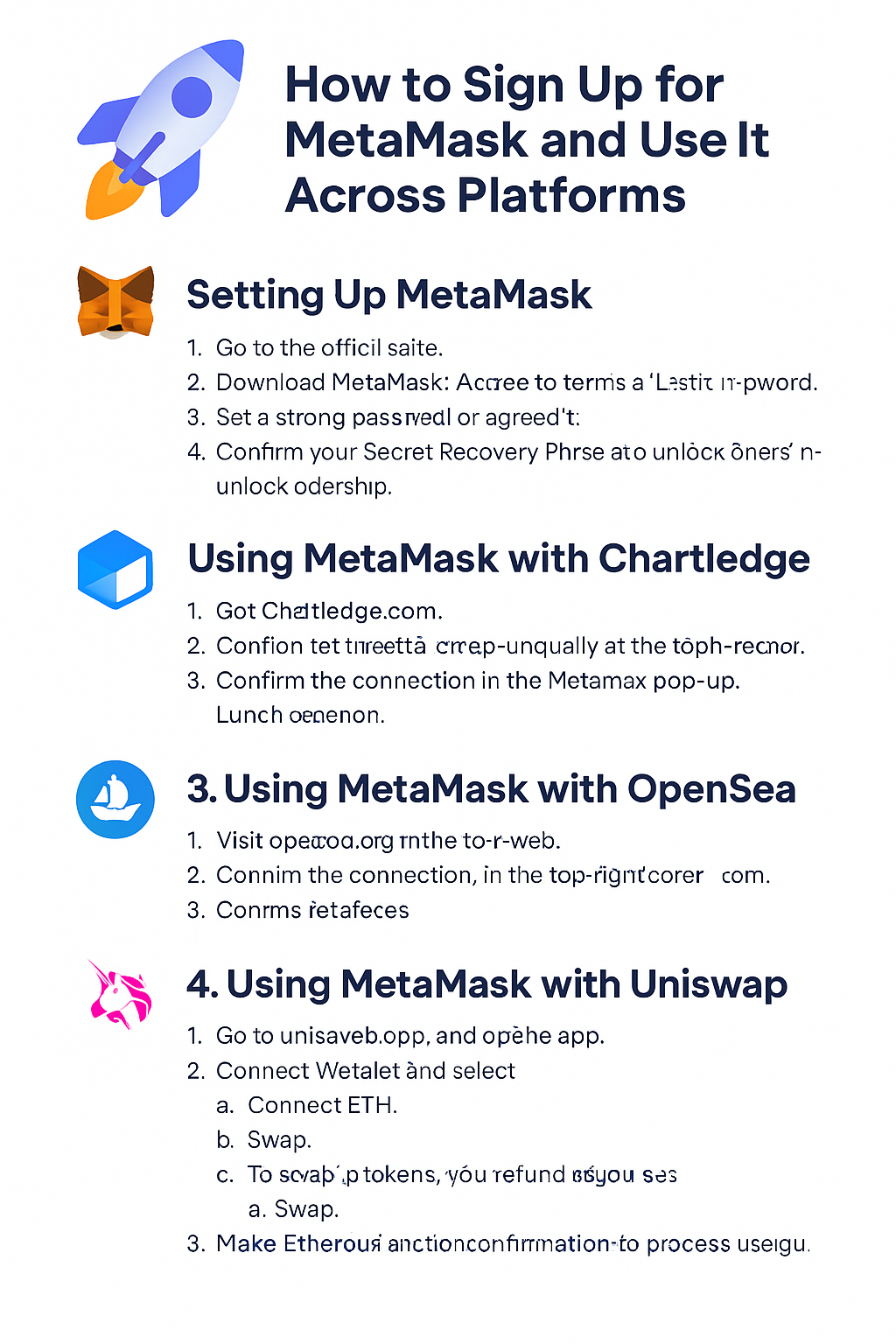
MetaMask has become one of the most popular tools for interacting with blockchain applications. It works as both a browser extension and a mobile app, giving users a secure and convenient way to store cryptocurrency, connect with decentralized apps (dApps), and manage NFTs. Below is a step-by-step guide to setting up MetaMask and using it with Chartledge, OpenSea, and Uniswap.
1. Setting Up MetaMask
To begin, download MetaMask directly from its official site at metamask.io
. It is available as a browser extension for Chrome, Firefox, Brave, and Edge, or as a mobile app for iOS and Android.
Once installed:
Click “Create a Wallet.”
Set a strong password and accept the terms.
Carefully write down your 12-word Secret Recovery Phrase. This is the only way to recover your wallet if you lose access, so never share it with anyone.
Confirm your recovery phrase to complete setup.
After this process, your MetaMask wallet is ready. You will see your Ethereum address, which is used to send and receive crypto or interact with dApps.
2. Using MetaMask with Chartledge
Chartledge integrates directly with MetaMask to verify wallet ownership and unlock exclusive features such as NFT-gated eBooks, premium KPIs, and analytics dashboards.
To connect:
Visit Chartledge.com
.
Click “Connect Wallet” (either in the header or when accessing gated content).
MetaMask will open a pop-up asking you to select your account—click “Connect.”
Once confirmed, Chartledge will recognize your wallet and unlock NFT-protected or subscription-based features.
If requested, approve any signature prompts to verify ownership.
3. Using MetaMask with OpenSea
OpenSea is one of the largest NFT marketplaces, and MetaMask is a primary way to interact with it.
Here’s how to connect:
Go to opensea.io
.
Click “Connect Wallet” in the top-right corner.
Choose MetaMask and approve the pop-up request.
Once connected, you can browse, buy, sell, and list NFTs directly from your wallet.
Make sure your wallet has ETH to cover purchases and Ethereum gas fees. ETH can be bought on exchanges or through MetaMask’s built-in purchase options.
4. Using MetaMask with Uniswap
Uniswap allows you to swap tokens directly from your wallet without a centralized exchange.
To get started:
Visit uniswap.org
and click “Launch App.”
Select “Connect Wallet” and choose MetaMask.
Pick your account and confirm the connection.
To swap tokens:
Choose the token you want to trade from and the token you want to receive.
Enter the amount.
Click “Swap.”
MetaMask will open a transaction confirmation screen showing details and gas fees. Approve it to finalize the swap.
In under a minute, your swapped tokens should appear in MetaMask.
Final Thoughts
MetaMask is the gateway to Web3. With a few simple steps, you can securely set up your wallet and start using it across platforms like Chartledge, OpenSea, and Uniswap. Always remember to protect your recovery phrase, verify websites before connecting, and keep some ETH handy for fees.
With MetaMask, you’re ready to explore the growing world of blockchain apps, NFTs, and decentralized finance.